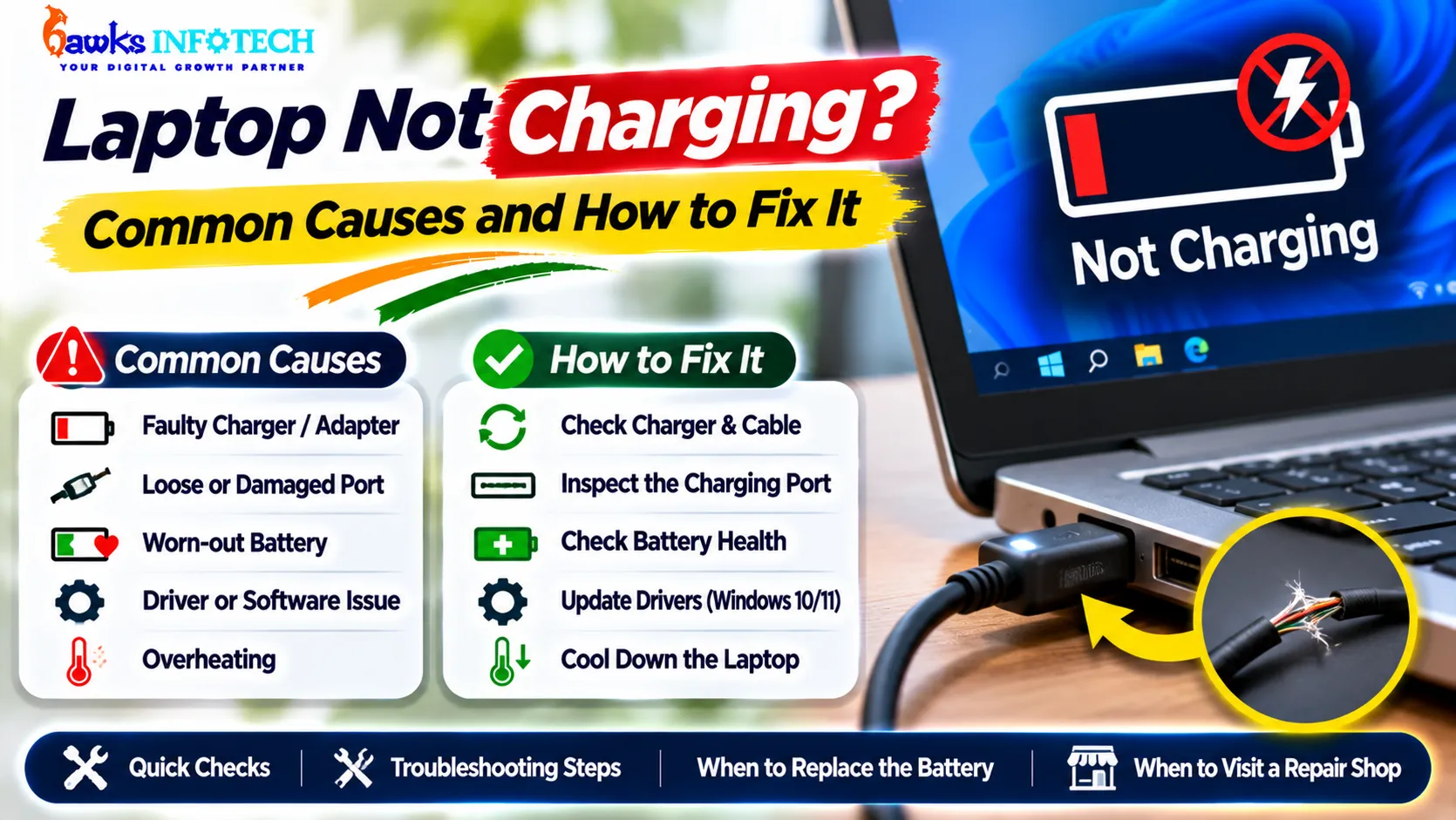
When a laptop shows "plugged in, not charging" or fails to draw power completely, the issue typically stems from one of four components: a degraded AC adapter unable to communicate through its central ID pin, a loose or fractured DC power jack, chemical battery exhaustion, or a shorted charging MOSFET on the motherboard. Bench testing at Hawks Infotech in Palam Colony shows that DC jack repairs typically cost between ₹650 and ₹1,200, while charging IC micro-soldering ranges from ₹1,500 to ₹2,800.
The DC Jack & Adapter Mystery
On Dell and HP laptops, a damaged central sensing needle in the charger plug prevents the motherboard from verifying the adapter's wattage. The laptop runs on mains power but intentionally refuses to charge the battery to prevent overcurrent.
Fast Local Diagnostics
Don't buy a new battery until your charger and power jack are tested on a regulated DC bench power supply. Free bench inspection available at our Palam Colony workshop, serving Dwarka, Janakpuri, and South-West Delhi.
Table of Contents
1. The Common Symptoms of Charging Failure
Laptops display charging failures in several distinct ways, each pointing to a different electronic sub-circuit. Understanding the exact visual and software behavior of your machine saves hours of trial and error:
- "Plugged In, Not Charging" Notification: The Windows taskbar recognizes the adapter connection, but the percentage stays frozen or slowly declines. This frequently occurs when the laptop cannot verify charger wattage or when battery cell chemistry has locked down.
- Charging Only When Holding the Cable at an Angle: A classic mechanical failure where the internal solder points of the DC power jack have fractured or the central barrel pin has lost spring tension.
- Charging Indicator LED Blinking Continuously: On Dell, Lenovo, and HP machines, alternating amber and white blinking codes often signal battery exhaustion or an overvoltage thermal warning.
- Completely Dead (No Lights, No Fans): If neither the charging indicator nor power LED illuminates when connected, power is not passing the first two input MOSFETs on the motherboard. For broader power diagnostics, read our troubleshooting guide on what to do when a laptop does not turn on.
2. Charger vs Battery vs Port: How to Isolate the Fault
Before replacing expensive components, technicians at our Palam Colony workbench follow a disciplined isolation sequence to avoid unnecessary part replacements:
A. The AC Adapter Test
We use a digital multimeter to measure DC voltage output across the barrel or USB-C connector. A healthy 19.5V adapter must maintain voltage under load. On Dell chargers, we also test the 1-wire ID pin; if the ID line is severed, the laptop boots but will never charge the battery.
B. The DC Port Inspection
We inspect the socket under stereo magnification. We check for cracked plastic casings, bent pins, loose wiggle room, and carbon soot from electrical arcing. On Type-C ports, we inspect the tiny CC1/CC2 communication pins.
C. The Battery Health Check
We run Windows battery reports (powercfg /batteryreport) to check original design capacity vs full charge capacity. If wear exceeds 60% or cycle count surpasses 700 cycles, the Battery Management System (BMS) may have triggered an internal shutdown.
3. Step-by-Step Fixes You Can Safely Try at Home
Before carrying your laptop to a repair shop in Janakpuri or Dwarka, test these safe, non-invasive troubleshooting steps:
Step 1: Perform an EC (Embedded Controller) Hard Reset
Turn off the laptop. Unplug the charger. Disconnect all external USB drives and peripherals. If your laptop has a removable battery, take it out. If the battery is internal, look for a tiny battery reset pinhole on the bottom cover (common on Acer and Lenovo). Press and hold the power button firmly for 30–40 seconds to drain lingering residual charge from the capacitors. Plug in only the AC adapter and attempt to turn it on.
Step 2: Reinstall the Microsoft ACPI Battery Driver
Corrupt Windows battery drivers frequently cause the "plugged in, not charging" status. Right-click the Windows Start menu and open Device Manager. Expand the Batteries section. Right-click on Microsoft ACPI-Compliant Control Method Battery and select Uninstall device. Do not delete the driver software. Restart your laptop. Windows will automatically detect the battery and reinstall a fresh driver instance.
Step 3: Inspect for USB-C Port Dirt & Lint
Modern laptops charging over USB-C often accumulate pocket lint and compacted dust inside the port. This prevents the charging cable from seating deeply enough to engage the power delivery pins. Carefully examine the port with a flashlight and clean gently using an anti-static nylon brush or dry wooden toothpick. Never insert metal needles or safety pins.
4. Workbench Hardware Diagnostics: DC Jacks & MOSFETs
When software resets fail to restore charging, the fault lies in the physical hardware. At our Palam workshop, we see two dominant hardware failures:
1. Fractured DC Jacks: On budget consumer laptops (such as HP 15s or Dell Inspiron series), the DC jack is held by plastic brackets molded into the palmrest. Tripping over a charger cable often cracks these plastic supports, loosening the port and causing intermittent connection. We either replace the harness cable or fabricate reinforced mounting brackets using structural acrylic resin.
2. Blown Input MOSFETs & Charging ICs: When power enters the motherboard, it passes through two sequential N-channel switching MOSFETs and a current sense resistor monitored by an intelligent charging IC (such as the BQ24780 or ISL95520 series). A voltage surge or cheap aftermarket adapter can short these transistors. Rather than replacing the whole motherboard for ₹15,000, our technicians desolder the shorted MOSFETs under a stereomicroscope and solder fresh components, restoring full charging capability.
5. Indicative Charging Repair Costs in Delhi (Hawks Records)
Based on real customer repair jobs recorded at our Palam workbench, here are transparent, indicative price ranges for resolving laptop charging failures in Delhi:
| Repair Category | Indicative Cost Range | Turnaround Time | Warranty / Notes |
|---|---|---|---|
| Modular DC Jack Replacement | ₹650 – ₹1,100 | 1 to 2 hours | Harness-type connector, includes internal cleaning |
| Soldered Board-Level DC Jack / USB-C | ₹950 – ₹1,600 | 2 to 4 hours | Precision SMD rework, tested under high amperage load |
| Original Compatible AC Adapter | ₹950 – ₹1,850 | Immediate pickup | OEM grade 45W / 65W / 90W chargers with 6–12 months replacement warranty |
| Chip-Level Charging IC / MOSFET Repair | ₹1,500 – ₹2,800 | 24 to 48 hours | Micro-soldering repair with 90-day workbench warranty |
| Internal Battery Replacement | ₹1,500 – ₹3,200 | 1 to 2 hours | Grade-A lithium-ion cells with 6–12 months warranty. See our laptop battery replacement guide |
6. Frequently Asked Questions (FAQs)
Can I continue using my laptop while plugged in if the battery won't charge?
Yes, if the laptop boots and runs normally when connected to mains power, you can safely use it. However, if the battery is swollen or overheating, disconnect it immediately to prevent chassis deformation and hazardous internal thermal runaway.
How do I know if my laptop charger is broken or the charging port is faulty?
If wiggling the cable near the laptop port causes the charging light to flicker on and off, the DC port is loose. If the charging light never turns on, the charger adapter block stays completely cold after being plugged in, or the cable feels severed near the brick, the charger is the primary suspect.
Why does my Dell laptop display "The AC power adapter wattage and type cannot be determined"?
Dell uses a 3-pin system where the center needle transmits 1-wire communication data. If that center needle is bent, dirty, or broken, or if the adapter's Dallas semiconductor chip is damaged, the laptop throttles CPU performance and refuses to charge the battery. Replacing the charger or fixing the DC jack resolves this error.
Can you fix a loose Type-C charging port on modern slim ultrabooks?
Yes. Modern USB-C ports have up to 24 microscopic solder pins directly connected to the motherboard. Our Palam workbench utilizes professional hot-air desoldering stations and optical magnification to remove damaged Type-C connectors and solder brand-new ports without damaging adjacent circuit layers.
Do you provide doorstep charging diagnostic visits across Dwarka and Janakpuri?
Yes. A technician can visit your location with test chargers and multimeters to determine whether the problem is your adapter or internal battery. If motherboard soldering is needed, the device is securely transferred to our Palam Colony workbench with an official job receipt.