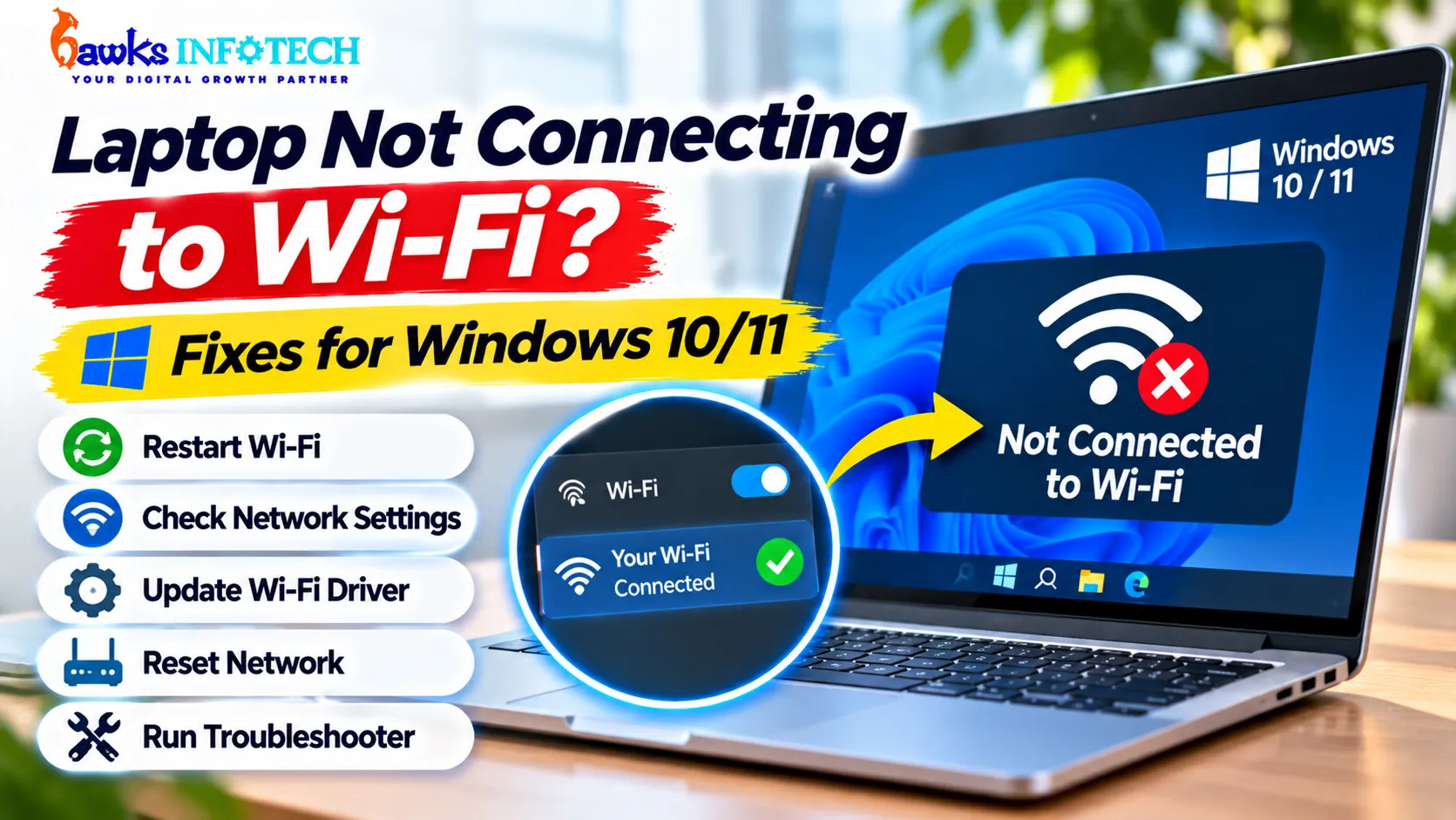
When your laptop suddenly stops displaying the Wi-Fi icon or refuses to connect to your home or office router, the root cause is typically a crashed WLAN AutoConfig Windows service, a corrupted network adapter driver after a Windows update, or a physically unseated M.2 Wi-Fi card. Based on Hawks Infotech service logs in Palam Colony, software WLAN driver resets and network stack rebuilds cost between ₹450 and ₹650, while replacing a physically burnt or malfunctioning dual-band Wi-Fi card typically ranges from ₹850 to ₹1,650.
The Missing Wi-Fi Icon
If the Wi-Fi globe icon disappears completely and Device Manager shows a yellow exclamation mark on Intel or Realtek WLAN adapters with Code 10 or Code 43, Windows has lost PCI-e bus communication with the wireless card.
Bench & Network Diagnosis
Fast adapter testing and antenna impedance checks at our Palam Colony workbench, plus direct on-site Wi-Fi and router troubleshooting across Dwarka (Sectors 1–23), Janakpuri, Sagarpur, and South-West Delhi.
Table of Contents
1. Understanding the Common Wi-Fi Glitches
Wireless network failures usually manifest in one of three frustrating behaviors on Windows 10 and Windows 11 machines:
- The Disappearing Wi-Fi Button: In the taskbar action center, the Wi-Fi toggle vanishes completely, replaced by a grey globe icon. Opening Windows Network Settings shows only "Airplane Mode" and "Ethernet", as if wireless hardware was never installed.
- "Can't Connect to This Network" Error: The Wi-Fi adapter scans and lists nearby networks, but clicking Connect results in an immediate failure after password entry, or displays "No Internet, secured".
- Intermittent Connection Drops: The laptop stays connected for 10 minutes, then randomly drops the link, requiring a system restart to temporarily rediscover routers.
2. Step-by-Step Software & Driver Fixes (Windows 10/11)
Follow these proven troubleshooting procedures before assuming your laptop's wireless card is physically broken:
Fix 1: Restart the WLAN AutoConfig Windows Service
Press Windows Key + R, type services.msc, and hit Enter. Scroll down to find WLAN AutoConfig. Double-click it. Ensure the Startup type is set to Automatic. If the service status is stopped, click Start. If it is already running, right-click and select Restart. This single step restores the Wi-Fi icon in nearly 30% of sudden software crashes.
Fix 2: Perform a Clean Driver Reinstallation in Device Manager
Right-click the Start menu and select Device Manager. Expand Network adapters. Look for your wireless module (e.g., Intel Wi-Fi 6 AX200, Realtek 8821CE, or Qualcomm Atheros). Right-click it and choose Uninstall device. If prompted, leave the option to delete driver software unchecked. Click Uninstall. Next, click Action > Scan for hardware changes in the top menu bar. Windows will automatically rediscover the card and reinstall a clean driver.
Fix 3: Disable Power Management Sleep State
Windows often turns off wireless cards to conserve battery. In Device Manager, right-click your Wi-Fi adapter and click Properties. Go to the Power Management tab. Uncheck the box that says "Allow the computer to turn off this device to save power." Click OK. This stops random Wi-Fi disconnections when waking up from sleep.
3. Flushing DNS & Resetting the TCP/IP Stack via CMD
If your laptop connects to Wi-Fi but shows "No Internet, secured", or displays DNS lookup errors on all web browsers, corrupted network routing tables are the likely culprit. Resetting the network stack via Administrator Command Prompt clears these locks:
netsh winsock reset
netsh int ip reset
ipconfig /release
ipconfig /renew
ipconfig /flushdns
Once all five commands execute, restart your laptop. This purges stale DNS cache entries, releases conflicting IP addresses, and rebuilds Winsock sockets from scratch. For broader office network management, explore our comprehensive IT services and network support guide.
4. Hardware Diagnostics: M.2 Wi-Fi Cards & Antennas
When software commands fail to revive the adapter, physical hardware testing is required. At our Palam Colony workbench, we see three primary physical faults:
- Loose or Unseated M.2 WLAN Card: After dropping a laptop or after hinge repairs, the internal M.2 wireless card can wiggle slightly out of its PCIe socket. Reseating the card and cleaning gold contacts with isopropyl alcohol immediately resolves the issue.
- Snapped Internal Antenna Cables: Wi-Fi antenna wires run from the bottom card through the laptop screen hinge assembly up into the display lid. If the laptop hinge becomes stiff or broken, it can sever or pinch these micro-coaxial cables. Learn more about hinge damage in our laptop hinge repair and cost guide.
- Blown WLAN Controller Chip: Cheap power spikes or lightning discharge through LAN cables can burn the wireless chipset. We swap the dead module with an upgraded dual-band Wi-Fi 6 (802.11ax) card, boosting transfer speeds and range significantly.
5. Indicative Wi-Fi Repair Costs in Delhi (Hawks Records)
Based on real customer repairs logged at Hawks Infotech, here are indicative price ranges for resolving laptop wireless issues in Delhi:
| Service / Component | Indicative Cost | Turnaround Time | Description |
|---|---|---|---|
| Software Driver Fix & Winsock Stack Reset | ₹450 – ₹650 | 30 to 45 mins | Driver patching, registry correction, DNS and firewall optimization |
| Hardware Card Reseating & Contact Cleaning | ₹550 – ₹850 | 45 to 60 mins | Bottom chassis teardown, PCIe gold contact cleaning, thermal pad check |
| Internal Dual-Band Wi-Fi 5 / Wi-Fi 6 Card Replacement | ₹850 – ₹1,650 | 1 to 2 hours | Intel / Realtek genuine M.2 card replacement with 6 months warranty |
| Antenna Cable Rework & Splicing | ₹750 – ₹1,200 | 2 to 3 hours | Re-routing antenna leads through hinge chassis to restore reception |
| High-Gain Nano USB Wi-Fi Dongle (Alternative) | ₹450 – ₹850 | Immediate | External plug-and-play solution for older legacy motherboards |
6. Frequently Asked Questions (FAQs)
Why does my phone connect to Wi-Fi while my laptop refuses to connect?
Smartphones use newer Wi-Fi chips that automatically navigate band-steering between 2.4GHz and 5GHz. If your laptop has an older 2.4GHz-only card or a buggy Windows driver, it may struggle with modern dual-band mesh routers. Updating drivers or separating router SSIDs into distinct 2.4GHz and 5GHz names usually fixes this.
Can a laptop Wi-Fi issue be resolved during a home visit in Dwarka?
Yes. Over 85% of Wi-Fi issues are software or driver-related and can be resolved within 45 minutes right at your desk. Our technician carries spare M.2 wireless cards and USB adapters in case a physical replacement is needed.
What does "Device Manager Code 10" mean on a Wi-Fi adapter?
Code 10 indicates that the hardware device cannot start because its driver is corrupt or outdated, or the system firmware cannot communicate with the hardware bus. A complete power drain (EC reset) combined with clean driver installation typically clears Code 10 errors.
Will replacing the internal Wi-Fi card give me faster internet speeds?
Yes. Upgrading an older single-band 802.11n card to a modern Intel Wi-Fi 6 (AX200/AX210) card enables Gigabit transfer speeds over 5GHz and 6GHz channels, drastically reducing latency and boosting file download speeds.
How much does a diagnosis cost at your Palam Colony repair shop?
Physical inspection and diagnosis at our Palam Colony workbench are completely free if you proceed with repair. For home visits across Dwarka, Janakpuri, and South-West Delhi, a nominal ₹250 to ₹350 visiting charge applies only if you decline the repair.